
Trading Platforms for Aging Eyes: Best Setups for Readability
Stop squinting at the DOM. Here is how to customize TradingView, TopstepX, NinjaTrader, and more for maximum readability—and how to start trading with your voice.
If you’ve traded for any length of time, you know the feeling: it’s 2:00 PM, your eyes are burning, and you're squinting just to distinguish a 5 from an 8 on the Depth of Market (DOM).
Most trading platforms are built by 20-something software engineers on massive 4K monitors. They default to tiny fonts, low-contrast "hacker" themes, and cramped layouts. For retiree traders, this isn't just an annoyance—it's a risk. Misreading a price level or clicking the wrong tiny button because of eye strain can instantly blow a prop firm evaluation.
Fortunately, with the right tweaks, almost any platform can be made highly readable. In this guide, we break down exactly how to scale the UI, increase contrast, and improve visibility on the top platforms, plus we'll look at the ultimate eye-saver: Voice Trading.
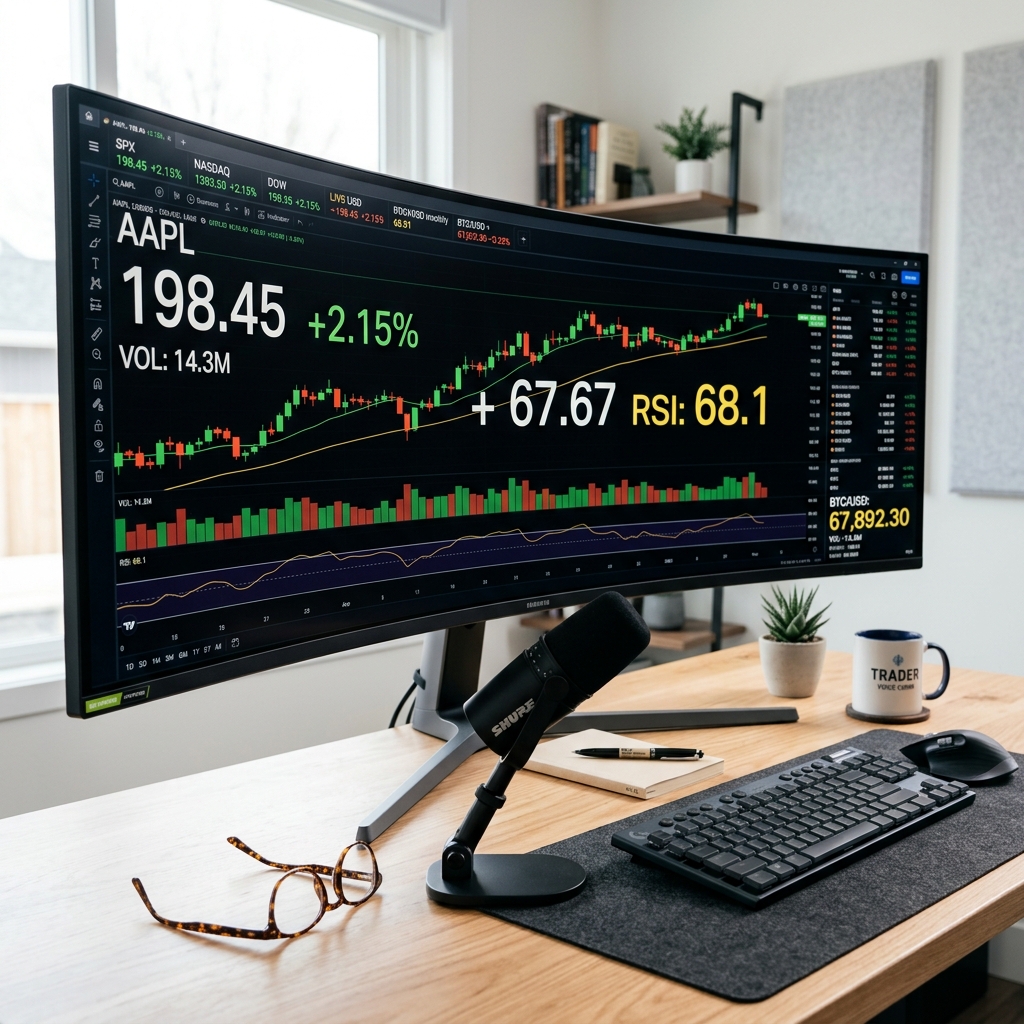
1. TradingView: The Browser-Based Standard
TradingView is incredibly popular because it runs in any web browser. This gives it a massive native advantage: you can simply use your browser's zoom function. However, for a truly optimized setup, you need to dig into the settings.
How to optimize TradingView:
- Global Zoom: Press `Ctrl` + `+` (Windows) or `Cmd` + `+` (Mac) to instantly scale the entire interface up.
- Increase Chart Font Size: Right-click the chart > Settings > Scales. Change the Text Size dropdown from the default (12) to 16 or 20.
- High-Contrast Theme: While many traders love "Dark Mode," a pure black background with bright neon green/red candles actually creates the highest contrast ratio. Right-click > Settings > Appearance > set Background to Solid Black.
- Thicken the Candles: In Settings > Symbol, uncheck "Borders" and "Wick," and make the Body colors highly saturated (pure #00FF00 for up, pure #FF0000 for down).
2. TopstepX: The Custom Prop Firm Solution
Topstep's new proprietary platform, TopstepX, was built specifically for their evaluations. It is web-based (like TradingView) but features a dedicated "Pro Mode" DOM and chart layout.
How to optimize TopstepX:
- Layout Scaling: Because TopstepX is web-based, browser zooming (`Ctrl` + `+`) is your best friend. The UI is highly responsive and scales cleanly without overlapping text.
- DOM Font Sizes: The Depth of Market tool in TopstepX is cleaner than traditional platforms. You can drag the edges of the DOM window to make it wider, which naturally spaces out the price ladder, making it much easier to read without squinting.
3. NinjaTrader 8: The Desktop Heavyweight
NinjaTrader 8 (NT8) is incredibly powerful but notorious for its dated, Windows 95-style default interface with tiny fonts. Because it's a desktop app, you can't just use browser zoom.
How to optimize NinjaTrader 8:
- Global Font Scaling: Go to the Control Center > Tools > Options > General. Look for "Skin" and ensure it's set to "NinjaTrader Dark". Then, use Windows Display Settings to scale your entire monitor up to 125% or 150%.
- Chart Axis Fonts: Right-click the chart > Properties. Under the "Visual" section, find the "Font" setting. Click the three dots `...` and change the font size from Arial 11 to Arial 16, and set the style to Bold.
- SuperDOM Readability: Right-click the SuperDOM > Properties. Increase the font size for the Price Column, and change the background colors of the Bid/Ask columns to higher contrast shades (e.g., bright blue and bright pink instead of dull green/red).
4. Tradovate: Modern & Cloud-Based
Tradovate is popular for its modern feel and cross-device compatibility. It offers excellent module customization.
How to optimize Tradovate:
- Workspace Scaling: Click the Application Settings icon (the gear in the top right) > Application Settings. You can adjust the global "UI Zoom" to scale everything up proportionally.
- Color Scheme: In the same Application Settings menu, switch the "Color Scheme" to a high-contrast dark theme. Tradovate allows you to customize the exact hex codes of your up/down ticks—make them as bright as possible.
5. Quantower: The Customization King
Quantower is quickly becoming a favorite for traders who need total control over their layout. It was built with modern high-DPI (4K) monitors in mind.
How to optimize Quantower:
- Built-in UI Scaling: Open the main control center > General Settings > Visual settings. Quantower has a native "UI Scale" slider. You can drag this to 125%, 150%, or even 200%. Every window, button, and text element scales perfectly without blurring.
6. Sierra Chart: The High-Performance Accessibility Legend
Sierra Chart is widely regarded by professional futures day traders as the absolute gold standard for raw execution speed and efficiency. While its interface looks like it was designed in the late 1990s, it is actually the most customizable software in the world.
How to optimize Sierra Chart:
- Fully Customizable Colors: Go to Global Settings > Graphics Settings. You can change the exact text and background color of every single pixel on the screen. A dark gray background with thick, high-contrast gold text is highly recommended by older traders to reduce severe fatigue.
- DOM Font Override: In your Trade Window or DOM, right-click > Customize Chart/Trade DOM Columns. You can override the font size of the price ladder cells to be as massive as you want (e.g., Size 22 Bold), giving you a crystal-clear display of active liquidity levels.
7. Preventing Order Sizing Disasters (Micro Contract Protection)
For retiree traders, one of the most critical safety issues related to vision is **accidental order sizing**. If you intend to trade 1 Micro contract (MES) but squint and accidentally click a button that submits 1 standard Mini contract (ES), you are trading at **10 times** the risk. A small 10-tick pullback that would normally cost you $12.50 on a Micro will instantly lose you $125.00 on a Mini, potentially breaching your daily loss limit.
How to build an order-sizing safety net:
- Disable the Mini Symbol: In your platform settings (such as NinjaTrader Instrument Lists or TopstepX filters), remove the standard Mini contracts (ES, NQ, YM, RTY) from your active list completely. If the symbol isn't there, you cannot accidentally click it.
- Color-Code Your Charts: Set your Micro charts to have a distinct border color or background tint (e.g., a warm gold background) to instantly alert your brain that you are trading Micro sizes, while keeping standard charts pure black.
- Order Confirmation Prompts: Never disable the order confirmation dialog box. Having a large, readable prompt ask you: *"Confirm Buy 1 MES at Market?"* acts as your final optical safety guard before execution.
The Ultimate Hack: A Bigger Monitor & Hardware Macros
No amount of software tweaking can beat premium hardware. If you are trading on a 13-inch laptop, you are going to strain your eyes and make physical click mistakes. Consider investing in a **34-inch curved ultrawide monitor** running at 1440p resolution. It allows you to make your chart windows massive while keeping everything on one screen.
Additionally, consider adding a physical **Elgato Stream Deck** or a dedicated macro keypad to your desk. You can program large, brightly illuminated, physical buttons for *"BUY MES"*, *"SELL MES"*, and a giant red *"FLATTEN ALL"* button. This completely eliminates the need to squint at a tiny mouse cursor during high-volatility events.
Special Section: Voice-Activated Trading (Submit Trades by Speaking)
What if you could bypass the screen and mouse entirely when it's time to execute? For retirees dealing with severe eye strain or arthritis, **Voice Trading** is the ultimate accessibility hack. Instead of desperately trying to align a tiny cursor with a "Buy Market" button while the market is moving fast, you simply speak the command.
While voice trading isn't a native, out-of-the-box feature in most retail platforms yet, it is highly achievable using third-party tools and macros. Here are the most common approaches:
1. NinjaTrader & Windows Voice Recognition (The DIY Route)
Because NinjaTrader is a native Windows desktop application, it can interface with Windows Speech Recognition or third-party macro software like VoiceAttack (highly popular in flight simulators).
- How it works: You map keyboard shortcuts in NinjaTrader (e.g., `Ctrl+B` for Buy Market, `Ctrl+S` for Sell Market, `Ctrl+C` for Close All/Flatten). Then, you use software like VoiceAttack to listen for specific phrases.
- The Execution: You say "Buy Micro" into your headset microphone. VoiceAttack instantly presses `Ctrl+B`, and NinjaTrader executes the trade in milliseconds.
2. TradingView Alerts + Webhooks + AI Voice Assistants
For cloud platforms like TradingView and Tradovate, traders are experimenting with AI voice parsing.
- How it works: A custom script listens to your microphone and converts your speech to text. If it hears "Flatten positions," it sends a secure webhook alert to an automation service (like SignalStack or Autoview), which then fires the API command directly to your broker (e.g., Tradovate) to close your trades.
The Critical Risks of Voice Trading
While incredibly convenient, voice trading comes with serious risks. A misinterpreted word ("Sell" instead of "Buy") or latency in the speech-to-text processing during a volatile breakout can result in catastrophic execution errors. If you choose to explore voice macros, **always test extensively on a simulated demo or a free practice account** for at least 30 sessions before using it on a live prop firm evaluation.
Summary: Professionalize Your Environment
Trading should be a rewarding mental exercise that keeps your mind sharp, not a source of physical strain and anxiety. Take the 15 minutes today to scale up your UI, color-code your contracts, thicken your chart lines, and give your eyes the break they deserve. Your eyes—and your trading account balance—will thank you.
Brendan Nolan
Retired Trader & Founder
After spending 25+ years as a Product Management executive designing platforms for the nation's top 401(k) and retirement providers, Brendan transitioned into active futures trading in his 60s. He built PropFirmRetiree to help late-career professionals apply disciplined, risk-first principles to prop firm trading.
Read Brendan's Story →